
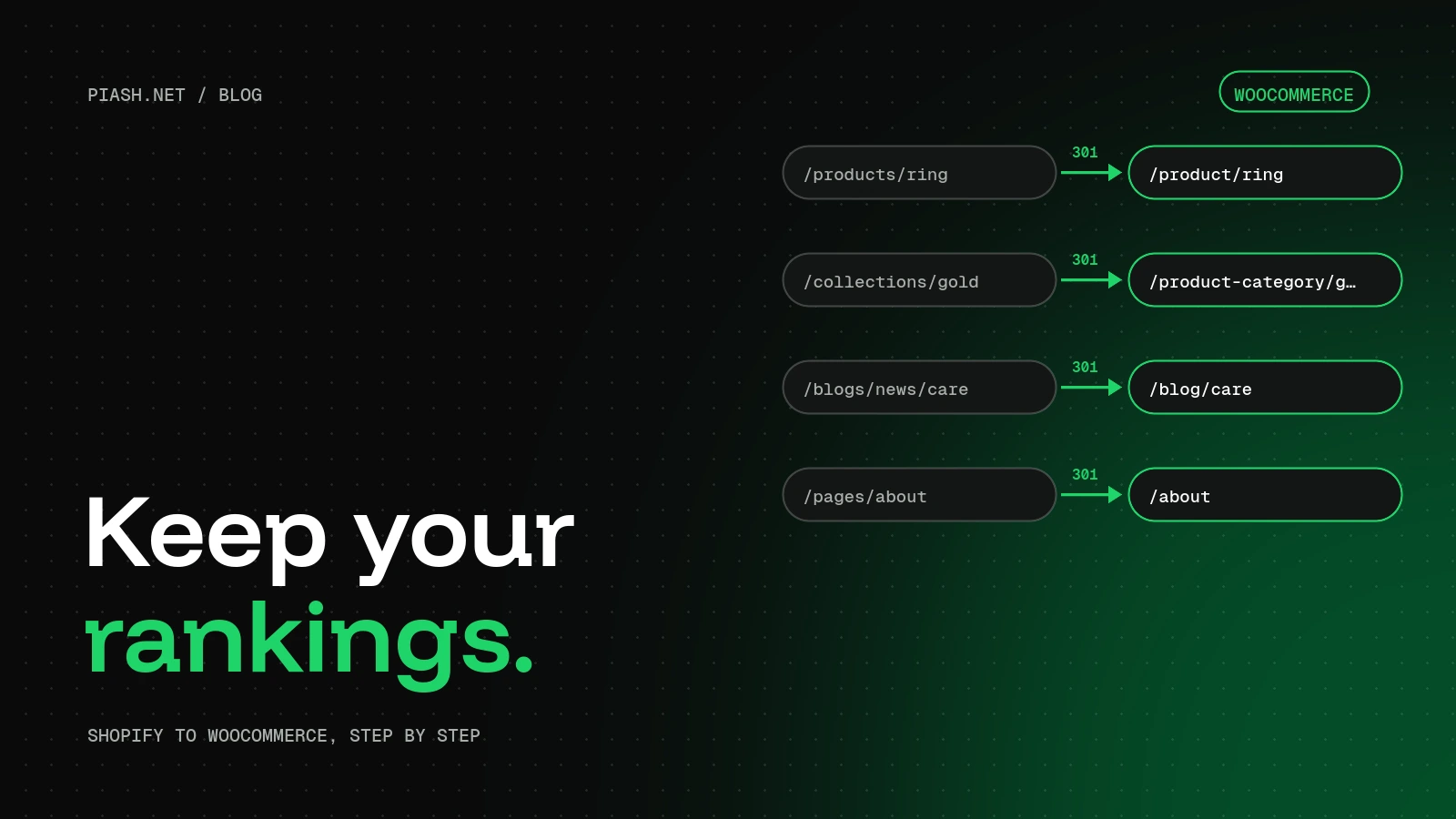
To move from Shopify to WooCommerce without losing your Google rankings, map every old Shopify URL to its new WooCommerce URL and set up 301 redirects before you switch DNS. Move products, collections, customers and orders with their SEO titles and descriptions intact, test checkout on staging, and submit the new sitemap in Google Search Console on launch day.
Rankings drop after a migration for a handful of predictable reasons. Handle those and most stores keep their traffic, and many grow once they’re on a faster, more flexible setup. This is the process I follow on every Shopify to WooCommerce move.
Why rankings drop after a migration
- URLs change. Shopify uses paths like
/products/,/collections/and/blogs/news/. WooCommerce defaults to/product/and/product-category/. Without redirects, every old link and every Google result points to a 404. - SEO data gets left behind. Custom page titles, meta descriptions and image alt text don’t always come across in a basic import.
- Content goes missing. Collections, blog posts, policy pages and size guides are easy to forget.
- The new site is slower. Cheap hosting or a heavy theme can undo the whole move.
How Shopify URLs map to WooCommerce
| Content | Shopify URL | Default WooCommerce URL |
|---|---|---|
| Product | /products/gold-ring | /product/gold-ring/ |
| Collection | /collections/rings | /product-category/rings/ |
| Product in a collection | /collections/rings/products/gold-ring | /product/gold-ring/ |
| Blog post | /blogs/news/ring-care | /ring-care/ or /blog/ring-care/ |
| Page | /pages/about | /about/ |
Notice the third row. Shopify shows the same product under several URLs when it’s reached through a collection. Those variations need redirects too.
Step 1: Export and list every URL
Start with a full list of what Google already knows about. Export products, collections, pages and blog posts from Shopify, and crawl the live store with a crawler such as Screaming Frog to catch anything else. Then pull your top pages from Google Search Console, so you know which URLs carry the most traffic and need the most care.
Step 2: Move the data
- Products with variants, images, prices, stock, SEO titles and descriptions.
- Collections as WooCommerce product categories, with their descriptions.
- Customers and their addresses.
- Order history, so customers and your team can still see past orders.
- Pages and blog posts, including images and alt text.
- Reviews, if your review app allows an export.
A migration tool such as Cart2Cart or LitExtension handles most of this. For larger or unusual catalogues I often use a custom import instead, because it gives full control over URLs and SEO fields.
Step 3: Keep URLs close to the original
The fewer URLs that change, the fewer redirects you rely on. WooCommerce lets you set the product base in the permalink settings, so you can keep /products/your-product/ if you want. Keep product handles exactly as they were wherever possible. Matching the old structure is the single safest SEO choice in the whole project.
Step 4: Build the 301 redirect map
Make a simple spreadsheet: old URL in one column, new URL in the other. Every product, collection, page and post gets a row. Then add the redirects with a redirect plugin or your SEO plugin.
- Use 301 (permanent) redirects, not 302s.
- Point removed products to the closest category, not the homepage.
- Avoid redirect chains, where A goes to B and B goes to C. Point A straight to C.
Step 5: Test everything on staging
- Place real test orders with every payment method.
- Check shipping rates and taxes for your main countries.
- Check order emails, both to the customer and to you.
- Click through a sample of redirects, starting with your top-traffic URLs.
- Run a speed test on key product and category pages.
Step 6: Launch without downtime
Keep the Shopify store live and taking orders until the moment you switch DNS. Freeze product changes for the last day or two, then import any orders placed during that window. On launch day:
- Switch DNS and confirm HTTPS works.
- Submit the new sitemap in Google Search Console.
- Check that old Shopify URLs redirect correctly.
- Send the password reset email to customers.
Step 7: Watch the first few weeks
Check Search Console and your redirect plugin’s 404 log every few days for the first two weeks, and fix missing redirects as they show up. Some ranking movement in the first weeks is normal while Google recrawls the site. It should settle once the redirects and content are right.
Key takeaways
- List every URL Google knows before you move anything.
- Keep URLs and product handles as close to the original as you can.
- 301-redirect every old URL, including the collection-based product URLs.
- Test real orders, shipping, taxes and emails on staging.
- Watch the 404 log closely for the first two weeks.
FAQ
Will I lose my Google rankings when moving from Shopify?
Not if every old URL redirects to the right new page and your SEO titles and descriptions come across. Some short-term movement is normal while Google recrawls.
How long does a Shopify to WooCommerce migration take?
A small store with a few hundred products usually takes one to three weeks including testing. Large catalogues, custom apps and subscriptions take longer.
Can I keep my Shopify product URLs?
Mostly, yes. Set the WooCommerce product base to products and keep the same handles. Collections and blog URLs still need redirects.
Do customers have to create new accounts?
Their accounts and order history move across, but they’ll need to set a new password, because Shopify doesn’t let anyone export passwords.
Thinking about moving off Shopify?
See how I handle Shopify to WordPress migrations, or get a free audit of your current store first.